Conditional Logic in Simply Forms lets you dynamically show or hide form fields and sections based on customers’ answers.
Instead of showing every possible question at once, you can display only the fields that are relevant to each customer. This helps you build cleaner, shorter, and more personalized Shopify forms without writing code.
Why Use Conditional Logic?
Not every question applies to every customer. Conditional Logic lets your form adapt as customers provide their answers. For example, you can:
- Ask for a Company Name only when the customer selects Business.
- Show an Email Address field only if the customer prefers to be contacted by email.
- Display a Reason for Low Rating only when a customer gives a rating of 3 stars or below.
- Show an In-store Appointment section only when In-person is selected as the preferred contact method.
By showing only relevant fields, you can make complex forms easier to understand and complete.
How Does Conditional Logic Work?
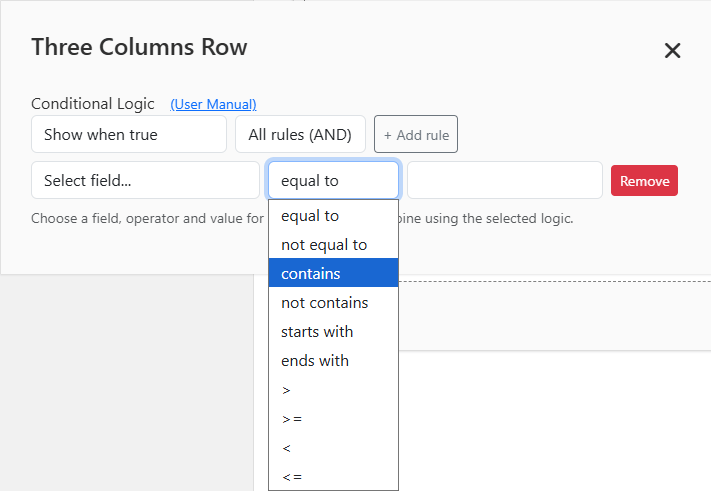
In Simply Forms, you create rules that determine when a field or section should be shown or hidden. Conditional Logic can evaluate several types of form fields, including:
- Dropdown
- Radio Buttons
- Checkboxes
- Rating
- Range
You can build conditions using different operators depending on the field’s value type:
- For string values: Contains, Not Contains, Starts With, Ends With, Equal To, and Not Equal To (String comparisons are case-insensitive.)
- For number values: Equal To, Not Equal To, >, >=, <, and <=
Multiple rules can also be combined using AND or OR logic, allowing you to create powerful workflows without writing any code.
Control Individual Fields or Entire Sections
Conditional Logic isn’t limited to individual fields. You can also apply it to container elements such as:
- Fieldset
- Two Column Row
- Three Column Row
- Other multiple columns rows.
When a container is shown or hidden, all of its child elements automatically follow. This makes it easy to create expandable sections without configuring every field individually.
Example: Contact Method Form
Suppose your form asks customers how they would like to be contacted. If they choose:
- Email → Show the Email Address field.
- Phone → Show the Phone Number field.
- In-person → Show the Preferred Store Location field.
Customers only see the information that’s relevant to their choice, making the form much simpler to complete.
Watch the Demo
This video demonstrates how to build the example form and configure Conditional Logic step by step.
Try the Example
Visit our demo store to try the example form yourself. If prompted, use the password simplyforms to access the site.
Learn More About Conditional Logic
Conditional Logic is available for almost every form element in Simply Forms and is easy to configure without any coding. For detailed instructions, supported operators, and best practices, see the Conditional Logic User Manual.
FAQ
What is conditional logic in a Shopify form?
Conditional logic lets a form dynamically show or hide fields and sections based on a customer’s previous answers. It helps merchants create forms that adapt to different customers instead of showing everyone the same questions.
Can I show or hide an entire section of a form?
Yes. Simply Forms can apply Conditional Logic to container elements such as fieldsets and multi-column rows. When the container is shown or hidden, its child fields follow automatically.
Can I create multiple conditions for the same field?
Yes. You can combine multiple Conditional Logic rules using AND or OR to determine when a field or section should be shown or hidden.
Do I need to write code to use Conditional Logic?
No. You can configure Conditional Logic directly in the Simply Forms form builder without writing code.
4 thoughts on “Build Smarter Shopify Forms with Conditional Logic”